Easy Retail Flow › Accounts › Expenses
¶ Expenses Guide
A comprehensive guide to managing organization expenses, tracking operational costs, and the approval workflow.
¶ 1. Expenses List Overview
The Expenses module provides a centralized dashboard for tracking all non-inventory financial outflows. Access this by selecting Accounts › Expenses from the sidebar.
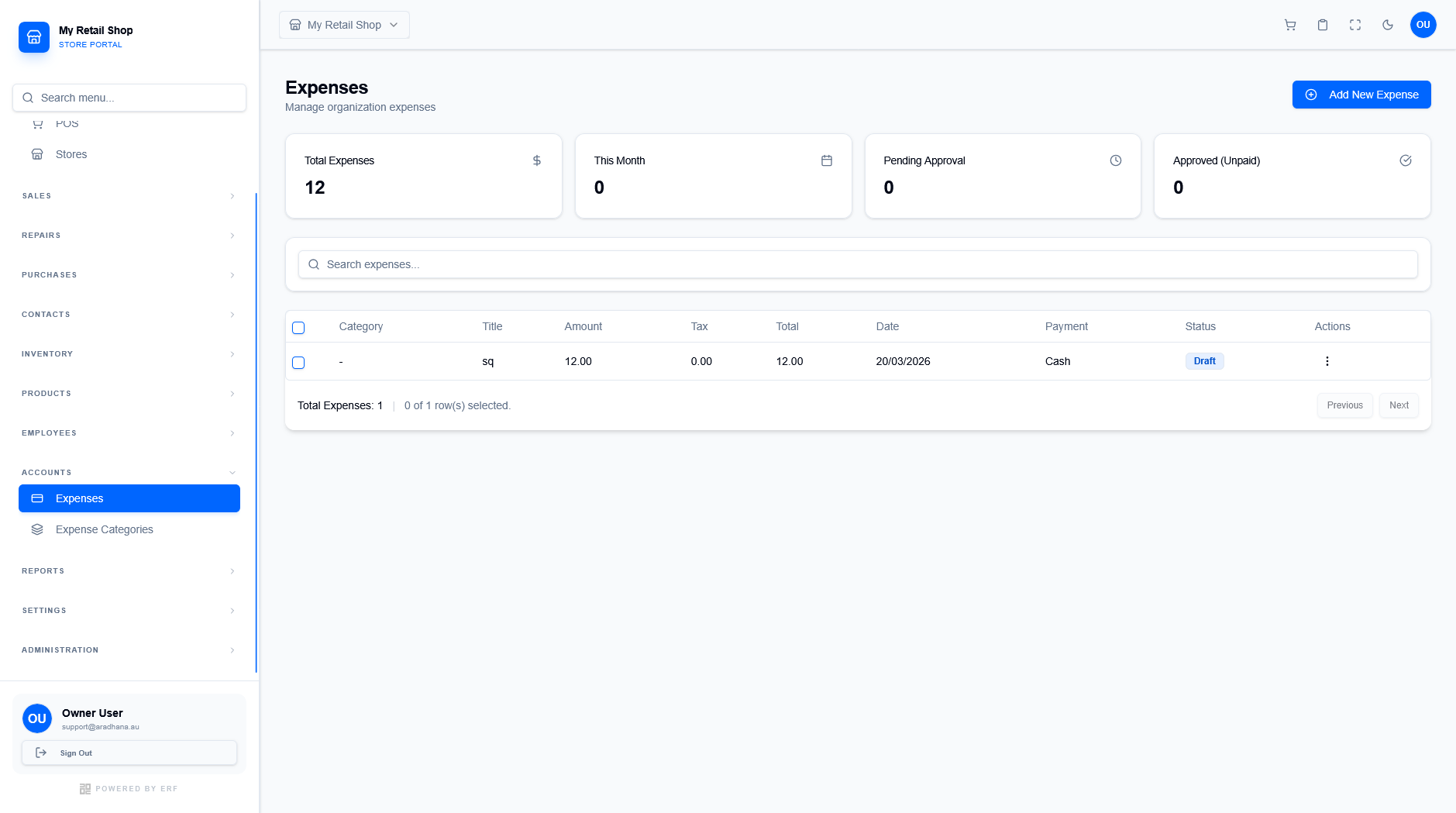
Figure 1 — The main Expenses management repository.
¶ 1.1 Summary Cards
At the top of the interface, four summary cards provide an immediate snapshot of the organization's financial standing:
- Total Expenses: The total number of expense entries recorded.
- This Month: Total value of expenses recorded in the current calendar month.
- Pending Approval: Count of expenses that have been submitted but are awaiting supervisor review.
- Approved (Unpaid): Count of expenses that have passed review but the payment hasn't been finalized.
¶ 2. Adding a New Expense
To record a new cost, click the blue + Add New Expense button. This opens the configuration modal where you enter transaction details.
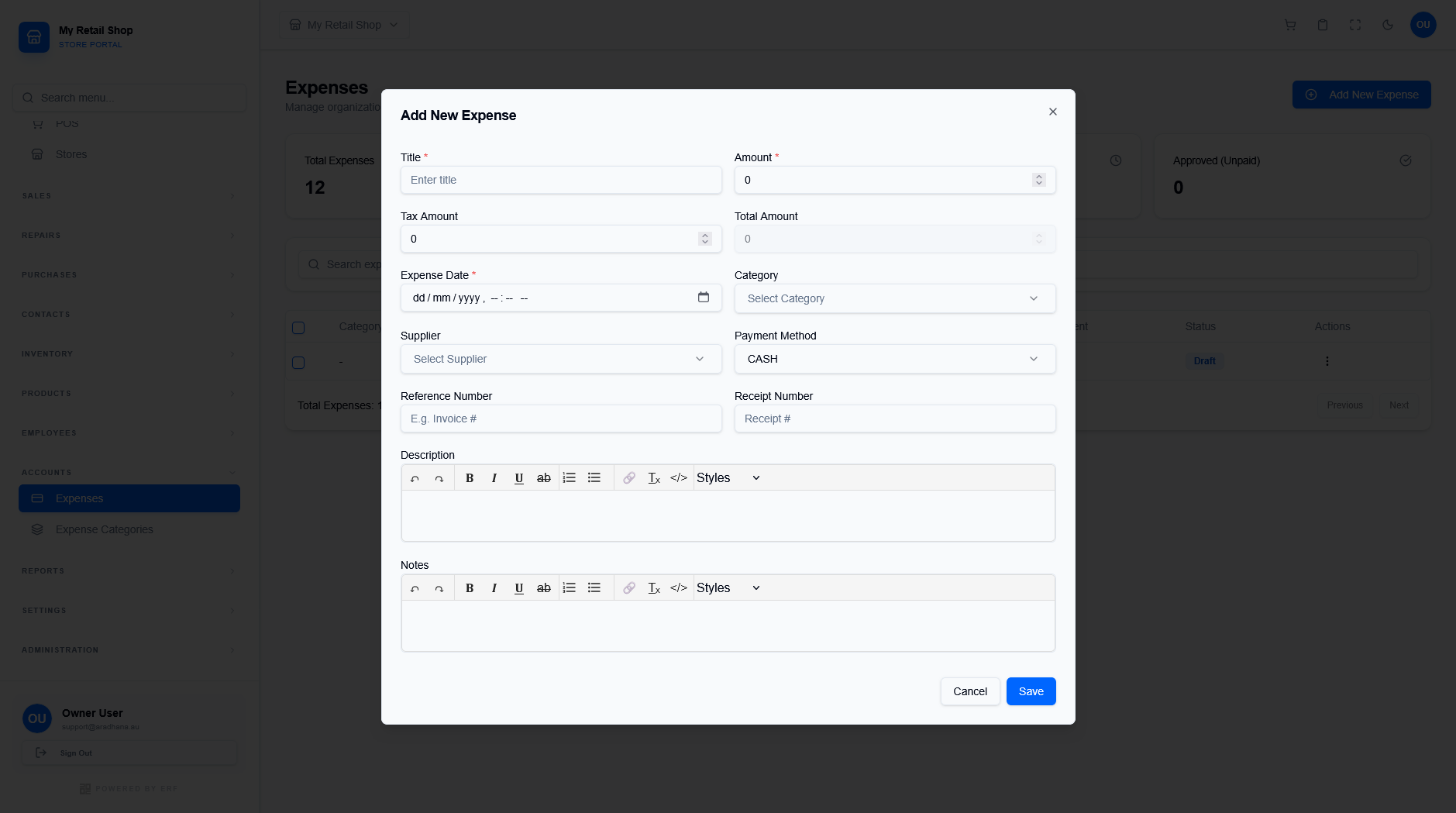
Figure 2 — The Add New Expense configuration screen.
| Field | Description |
|---|---|
| Title & Category | A descriptive name for the expense and its classification (e.g., Rent, Utilities, Supplies). |
| Financials | Enter the Amount and Tax Amount. The Total Amount is calculated automatically. |
| Source & Payment | Select the Supplier and Payment Method (CASH by default). |
| Documentation | Enter Reference Number or Receipt # for audit trails. |
| Rich Description | Use the Description and Notes fields for detailed explanations using the rich-text editor. |
¶ 3. Managing Expenses
Expenses follow a specific lifecycle. When an expense is first created, it is saved as a Draft. To manage an entry, use the Actions menu (three dots) on the right-hand side.
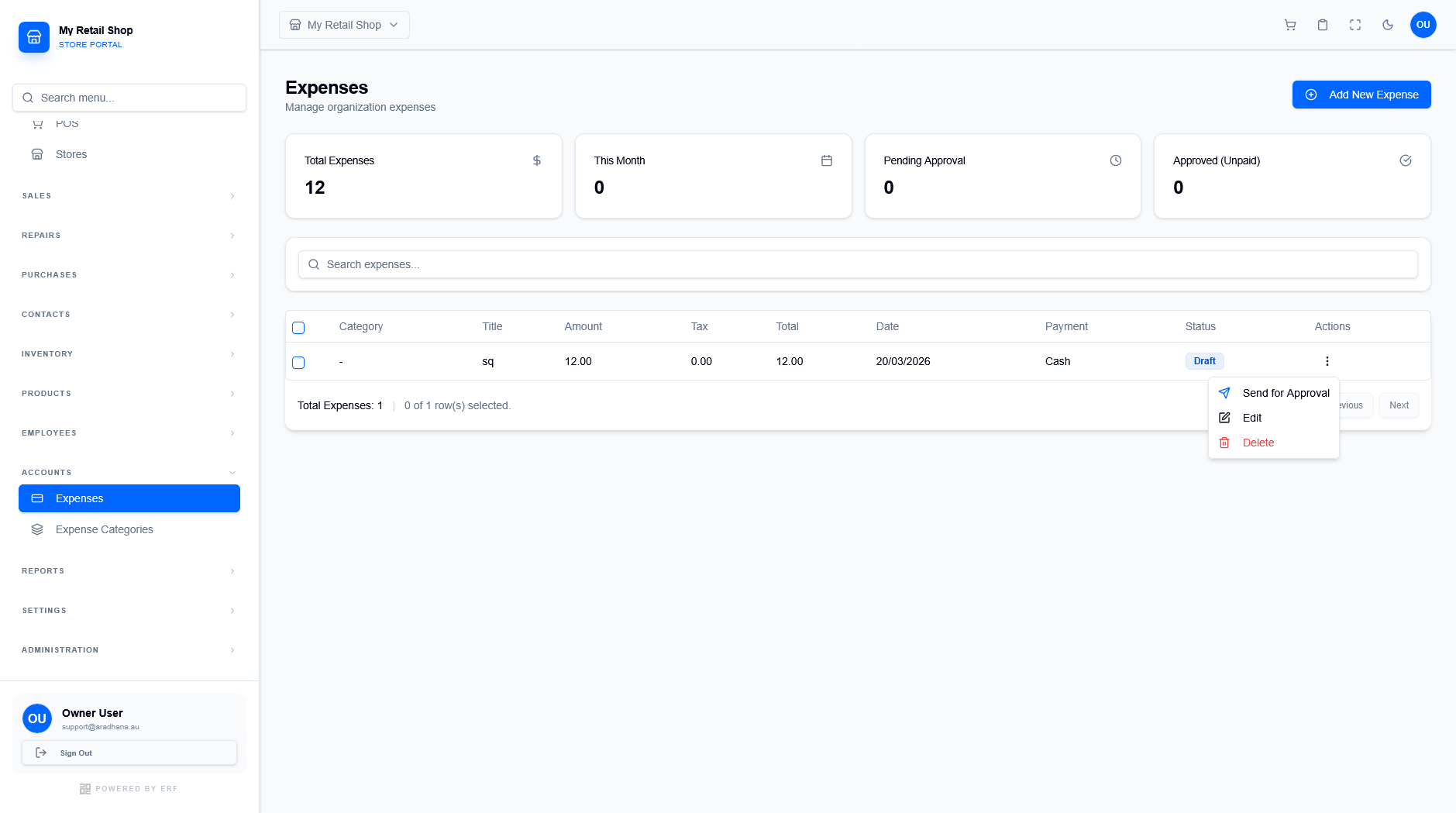
Figure 3 — Management options for expense entries.
¶ 3.1 Action Lifecycle
- Send for Approval: If the status is Draft, use this to submit the expense for review. Once submitted, the status changes to Pending Approval.
- Edit: Modify the details of a draft or rejected expense.
- Delete: Permanently remove the record from the system.