Easy Retail Flow › Administration › Users › Change Password
¶ How to Change User Password
A step-by-step guide for administrators to securely reset or update user credentials.
¶ 1. Accessing the Password Reset Menu
Password updates are performed from the main Users table. Locate the user whose password requires modification and open the Row Actions menu.
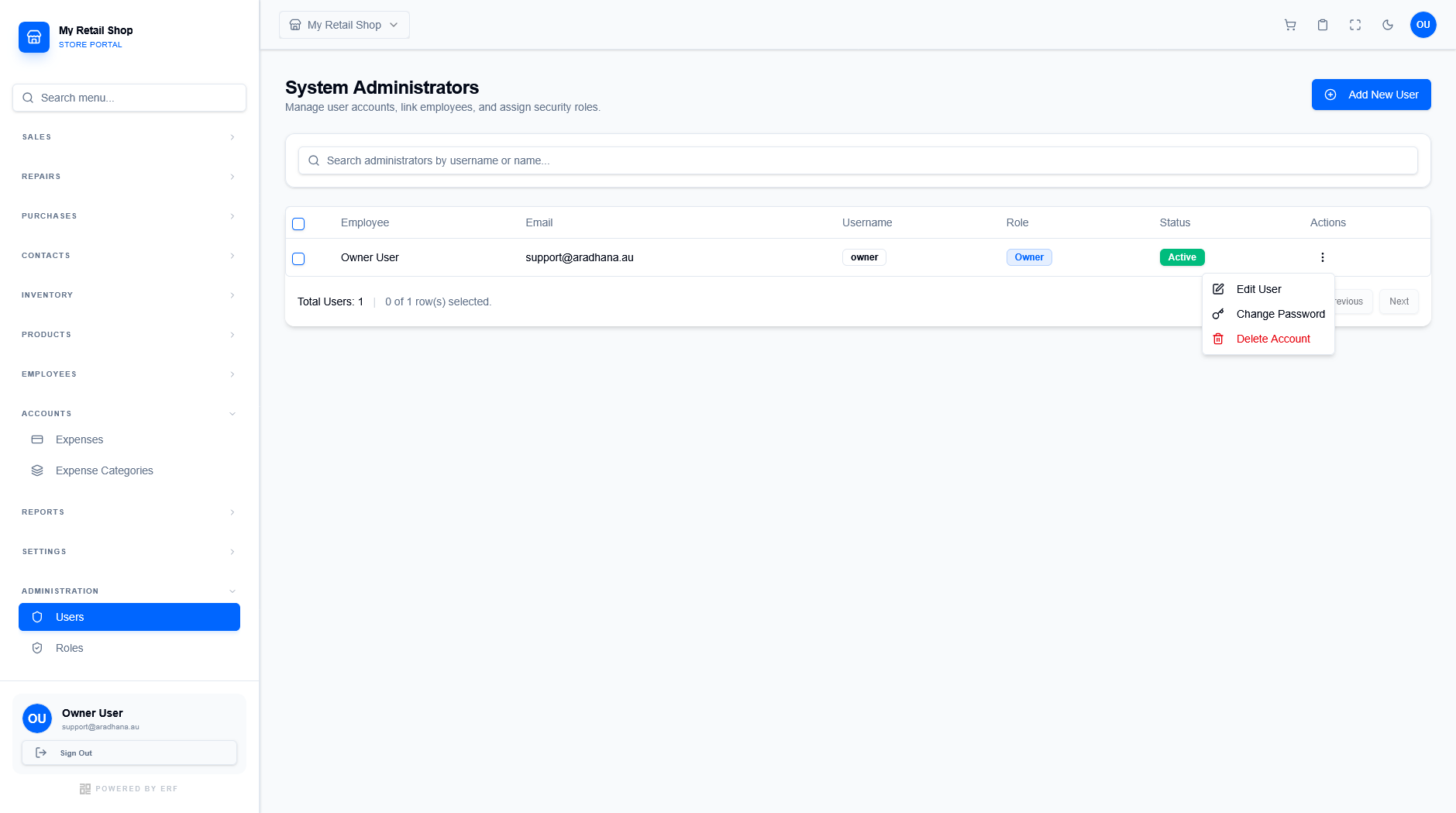
Figure 1 — Selecting 'Change Password' from the actions dropdown.
Click the three vertical dots at the end of the user row and select Change Password (indicated by the key icon).
¶ 2. Using the Change Password Modal
Once the modal appears, follow these steps to finalize the update. Note that the system identifies the target user in the yellow notification box at the top.
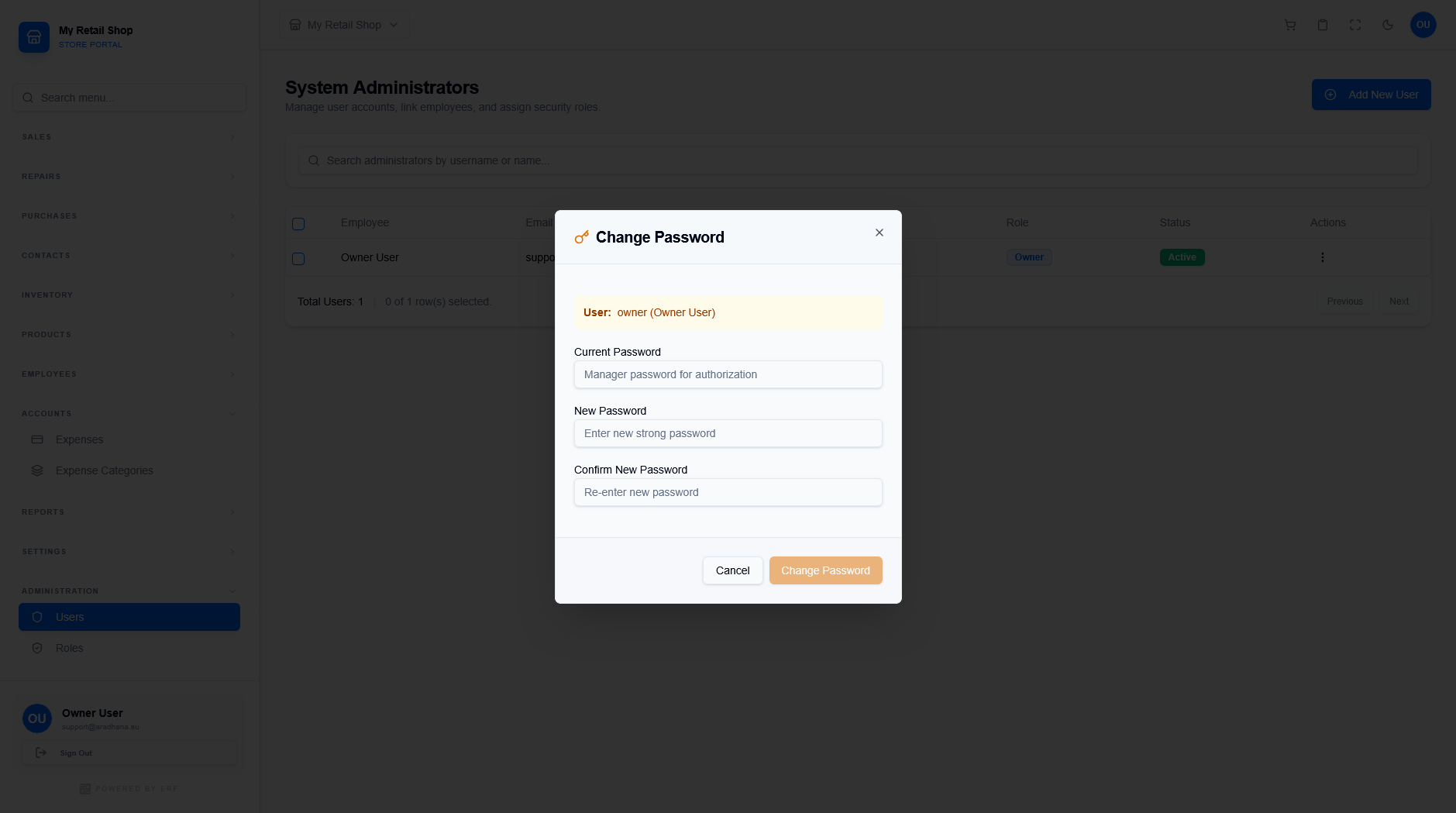
Figure 2 — The secure password update configuration.
¶ 2.1 Input Requirements
- Current Password: As a security measure, the administrator must enter their own "Manager password" to authorize this change.
- New Password: Enter a strong, unique password for the user.
- Confirm New Password: Re-type the password to ensure there were no typos.
Verification Step: Click the orange Change Password button to apply the update. The user will be required to use this new credential for their next login attempt.
© 2026 Easy Retail Flow