Easy Retail Flow › Inventory › Stock Adjustments
¶ Stock Adjustments
Correct inventory discrepancies, record physical counts, and manage stock losses with full audit tracking.
¶ 1. Adjustment List
The Stock Adjustments dashboard allows you to monitor all historical changes to your inventory levels that weren't triggered by a sale or purchase order.
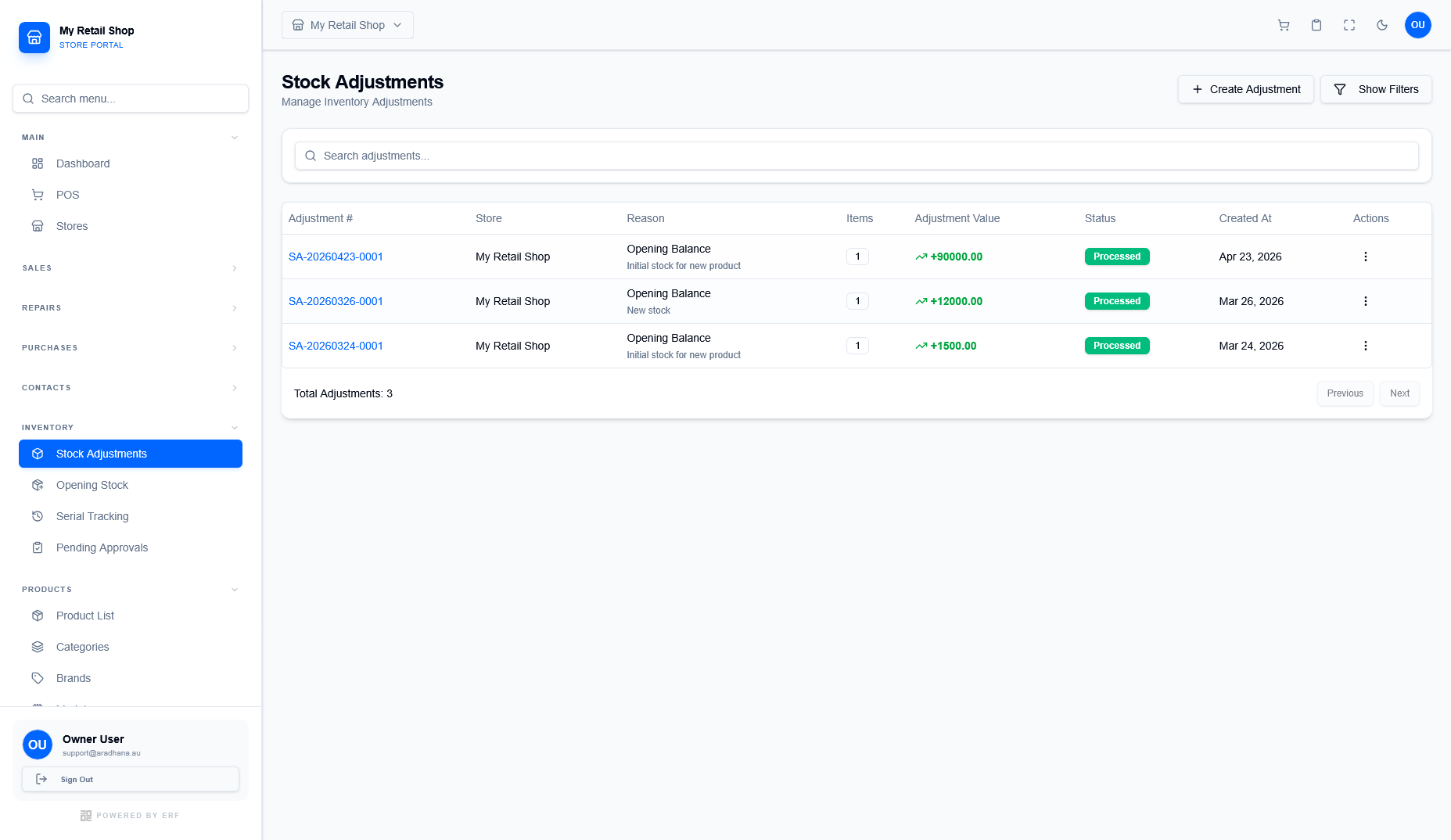
Figure 1 — The log of all manual inventory corrections.
| Column | Description |
|---|---|
| Adjustment # | Unique system-generated ID for the transaction. |
| Reason | The classification (e.g., Physical Count, Opening Balance). |
| Adjustment Value | The total financial impact (positive or negative) of the change. |
| Status | Current state (e.g., Processed, Pending Approval, Draft). |
¶ 2. Creating a Stock Adjustment
Click + Create Adjustment to open the entry form. This multi-step process ensures all changes are documented before inventory is updated.
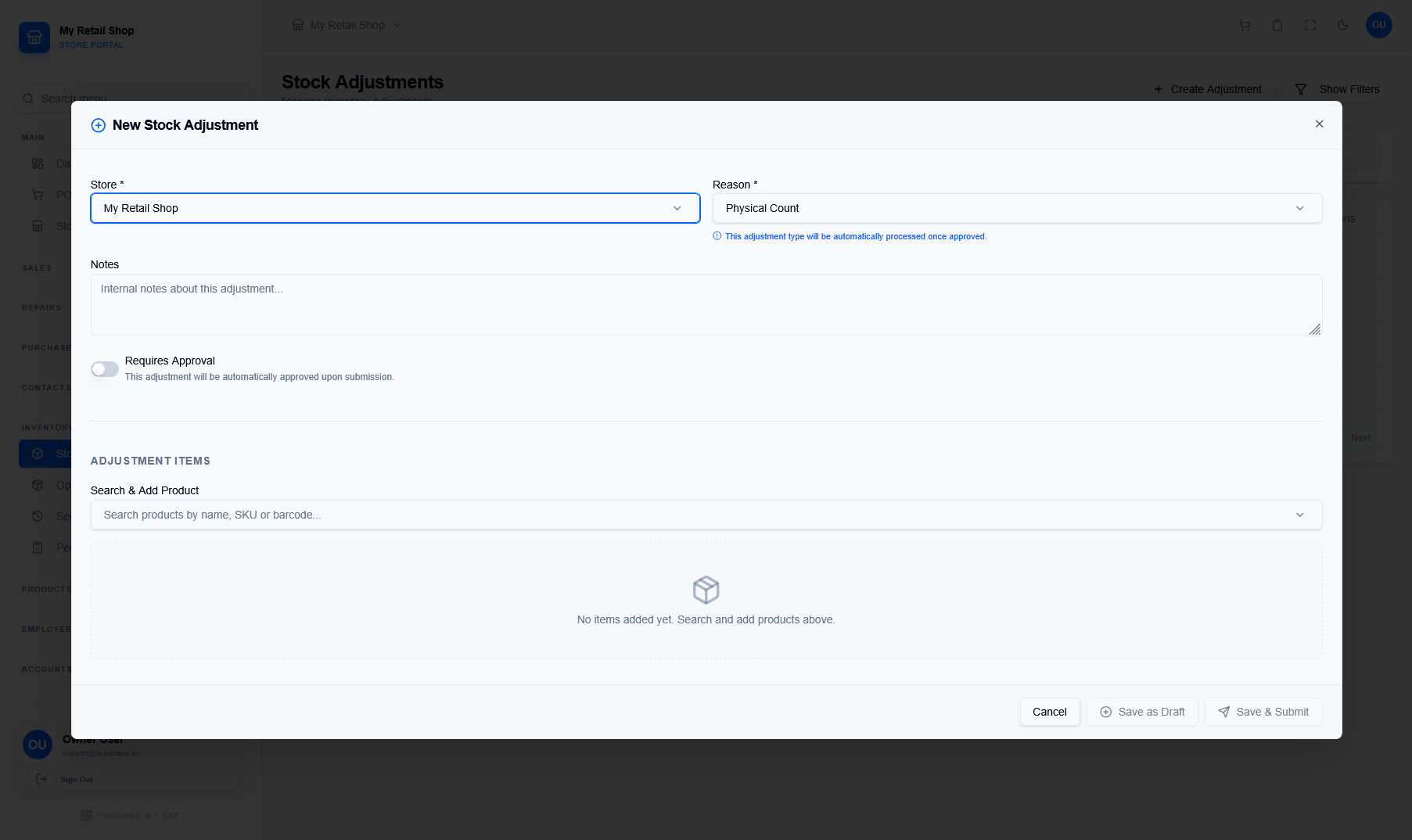
Figure 2 — The entry screen for new inventory corrections.
- Header Info: Select the Store and the Reason for the adjustment.
- Requires Approval: If enabled, the adjustment will enter a "Pending" state and must be authorized by a manager before taking effect.
- Search & Add: Use the search bar to find products by name or SKU.
- Adjustment Values: Enter the quantity change as a positive figure (increase) or negative figure (decrease).
¶ 3. Detailed Transaction Review
Once processed, you can view the full details of any adjustment by selecting View Details from the actions menu. This provides a granular audit trail.
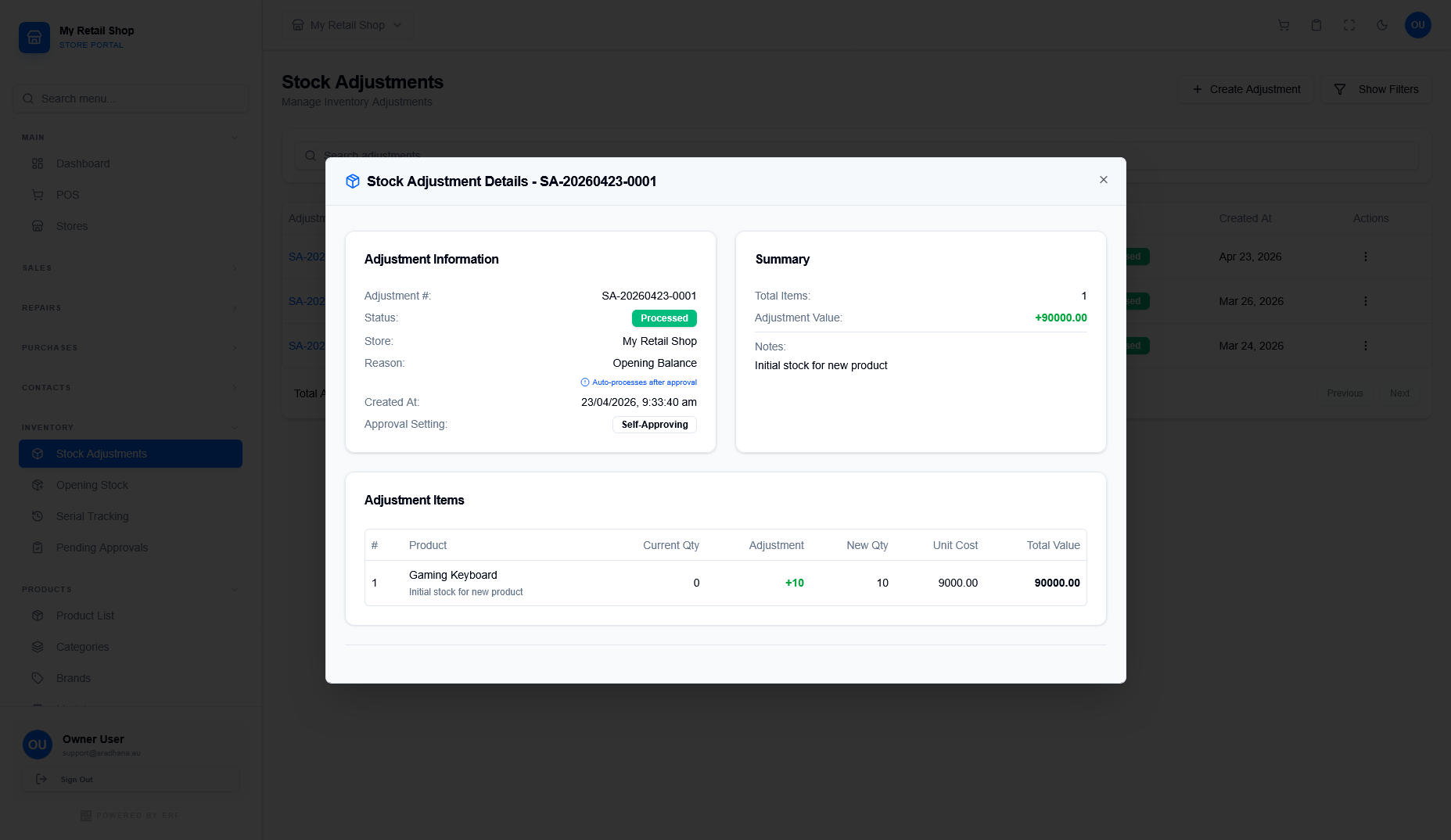
Figure 3 — The detailed summary and itemized breakdown of a correction.