Easy Retail Flow › Sales › How to Add a New Sale
¶ How to Add a New Sale
A step-by-step guide to generating a new transaction from the business portal.
¶ 1. Initiating the Transaction
To begin, navigate to the Sales List and click the blue + New Sale button. This will open the transaction configuration screen shown below.
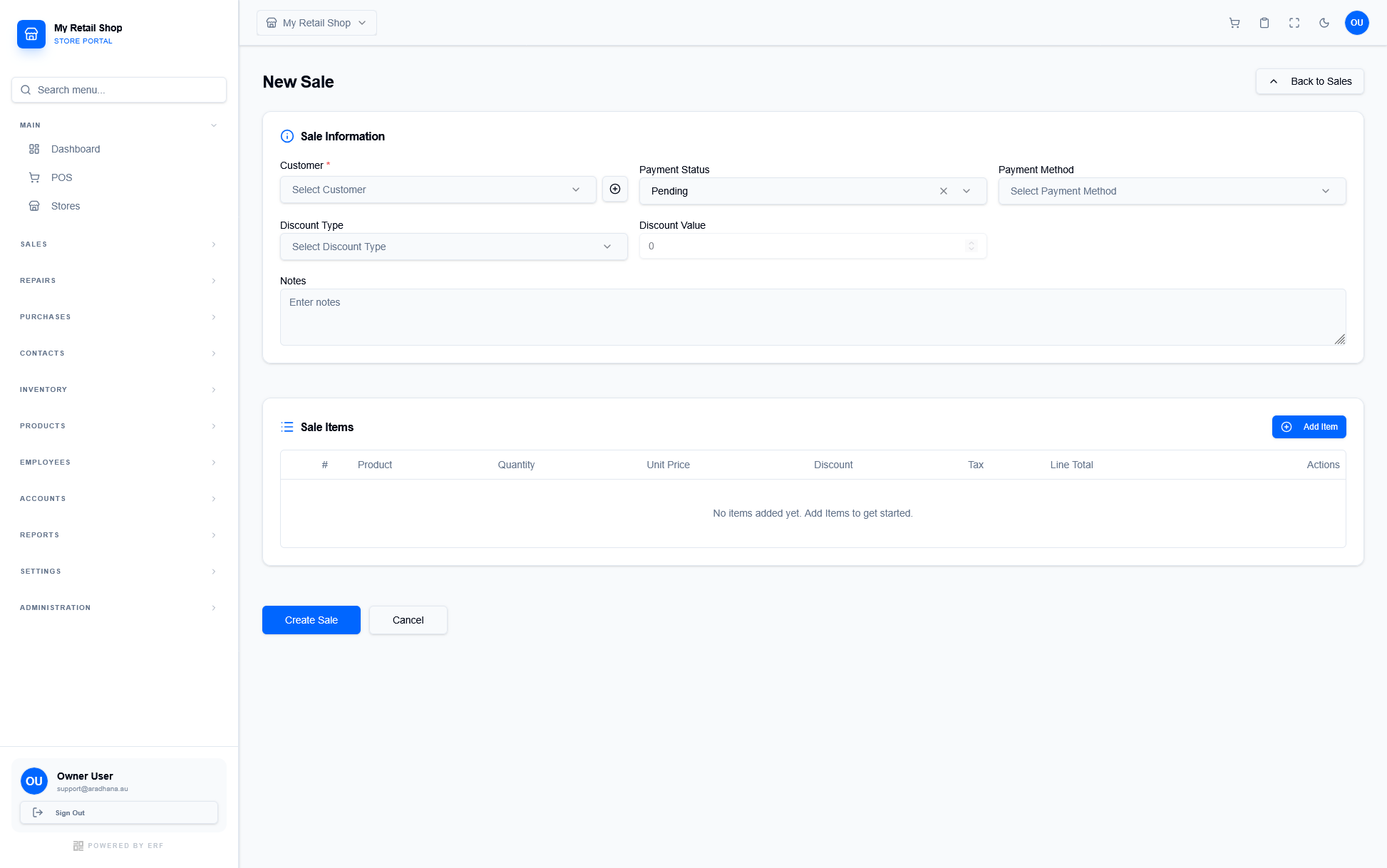
Figure 2 — The New Sale configuration screen.
¶ 1.1 Sale Information
Capture the customer and billing details for this transaction.
| Field Name | Description |
|---|---|
| Customer * | Select an existing customer or use the icon to add a new one. |
| Payment Status | Set to Pending, Paid, or Partial depending on the current transaction state. |
| Payment Method | Define how the customer is paying (e.g., Cash, Card, Bank Transfer). |
| Discount | Apply a global discount to the entire invoice using percentage or flat value. |
| Notes | Add internal or external notes regarding specific delivery or order requests. |
¶ 1.2 Sale Items
List all products being purchased in this transaction.
Once all details are verified, click the Create Sale button to finalize the transaction and update your inventory stock levels.
¶ 2. Finalizing the Transaction
Upon a successful sale entry, the system generates an official Invoice PDF and displays the success modal shown below.
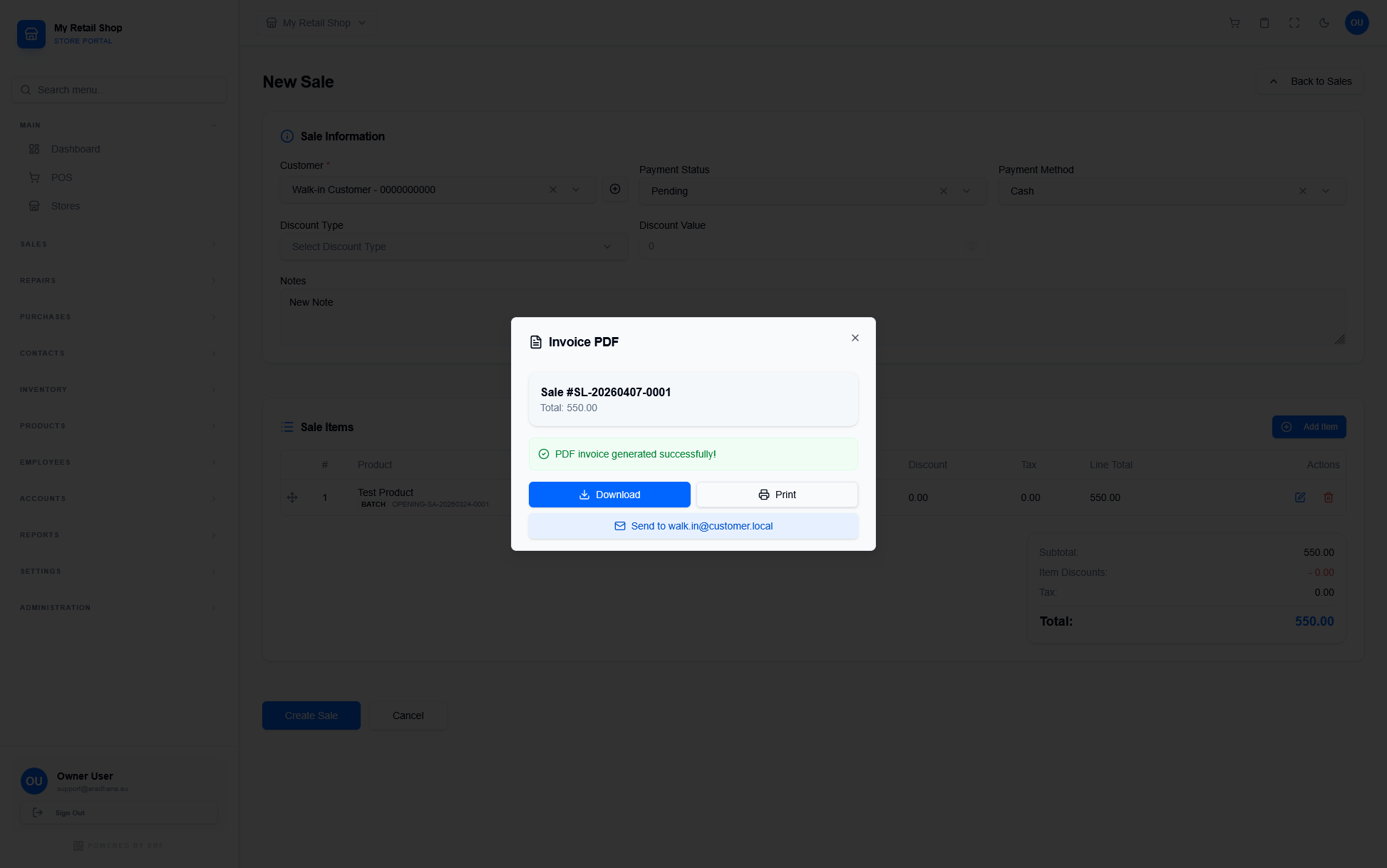
Figure 3 — The Invoice PDF success and action modal.
You have several immediate actions available to provide the customer with their transaction record:
- Download — Save a copy of the PDF invoice directly to your device for local storage or manual sharing.
- Print — Send the invoice directly to your connected receipt or office printer.
- Send Email — Automatically email the invoice to the customer address associated with their profile.