Easy Retail Flow › Settings › Tenant Settings
¶ Tenant Settings
Configure the global system preferences, operational rules, and external integrations for your entire business entity.
¶ 1. Core Identity & Communication
Establish your brand's foundation and outbound email servers.
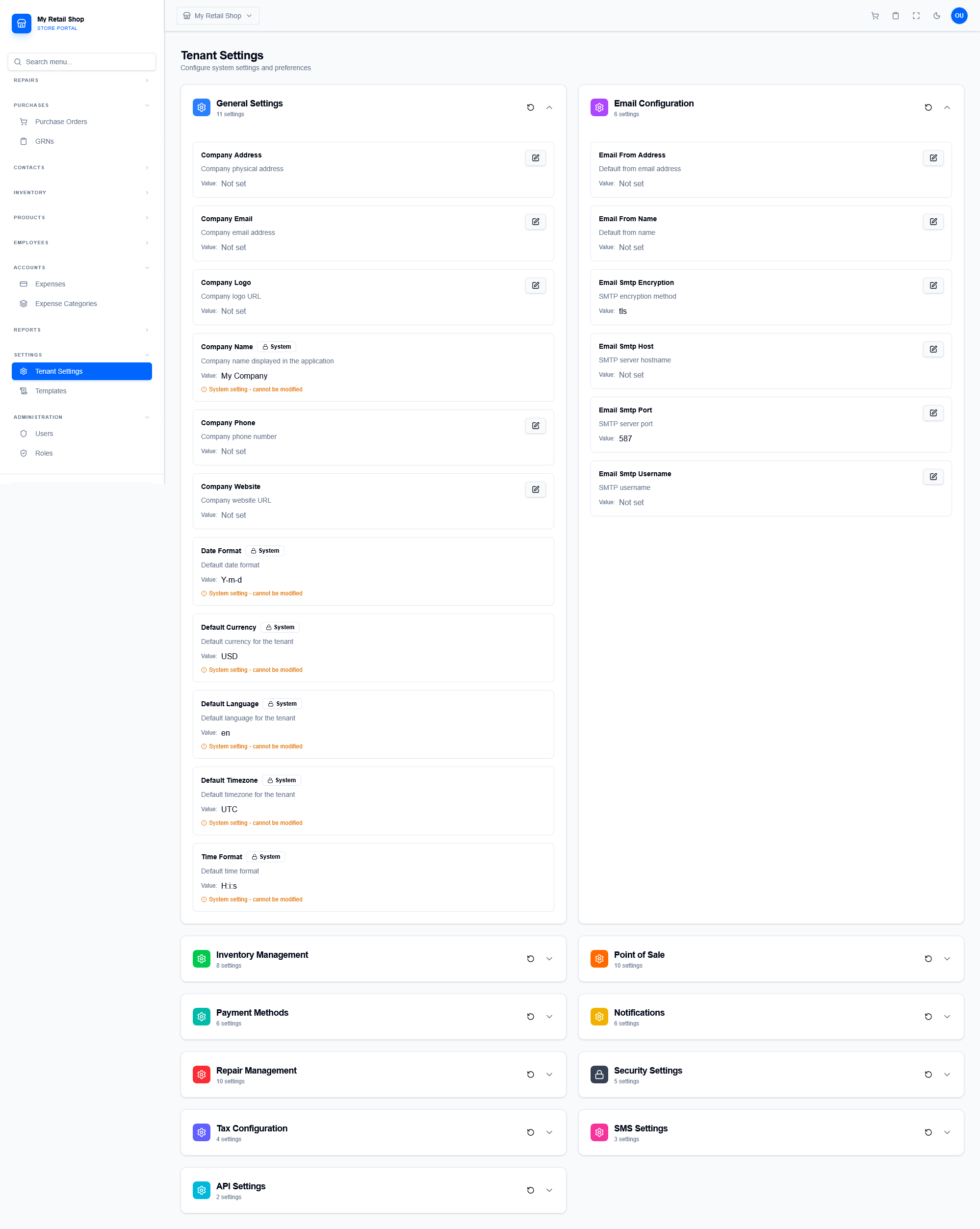
Figure 1 — General Settings (Currency, Timezone, Logo) and SMTP Email Configuration.
- General Settings: Define global defaults like Currency, Language, Date/Time formats, and your Company physical address.
- Email Configuration: Connect your SMTP server (Host, Port, User) to enable outbound system emails like receipts and alerts.
¶ 2. Operational Logistics (Inventory & POS)
Control how the system handles day-to-day operations across your warehouses and storefronts.
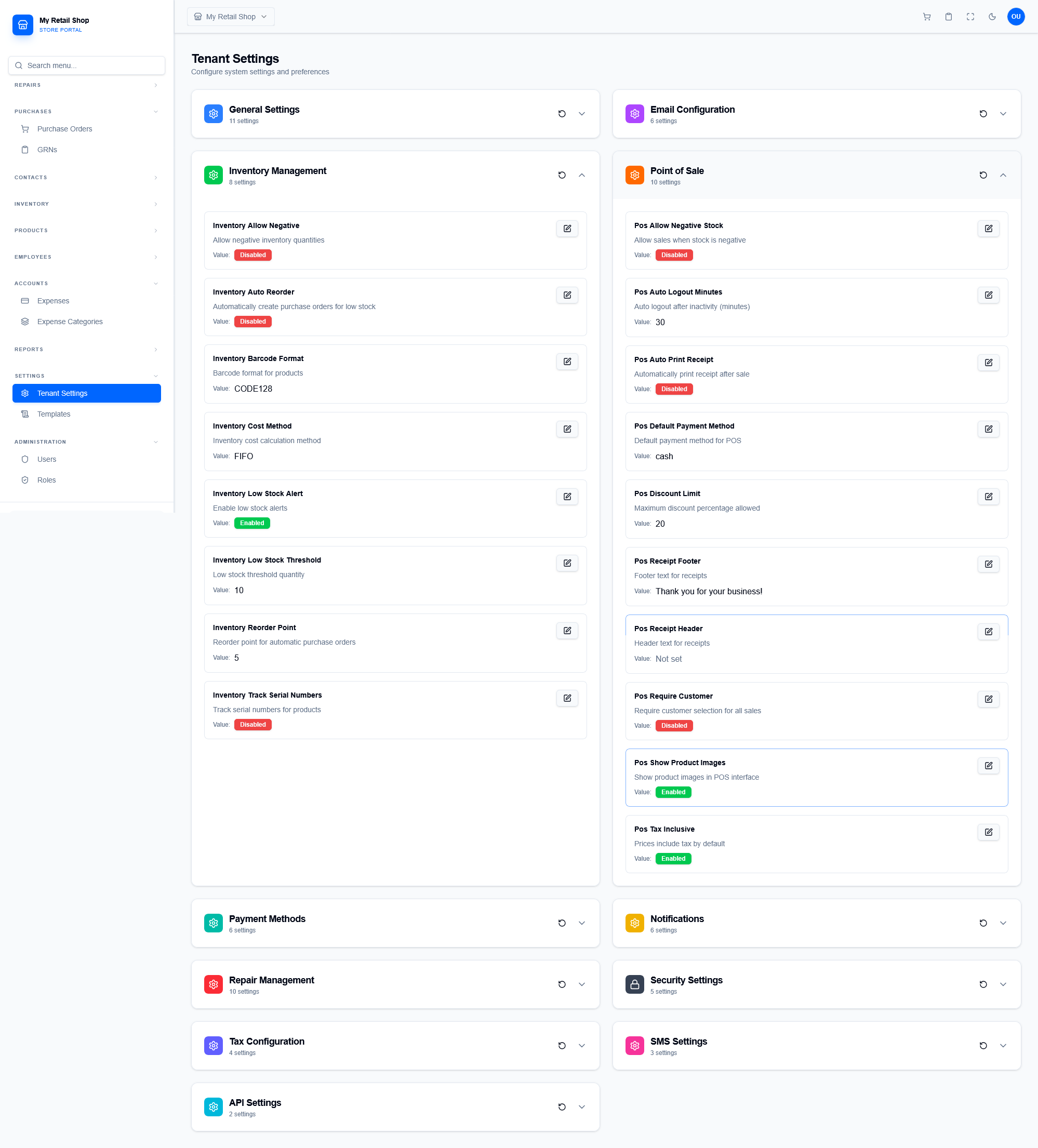
Figure 2 — Configuration rules for Inventory Management and the Point of Sale.
- Inventory Management: Toggle negative stock allowances, set global low-stock thresholds (e.g., alert at 10 items), and enable automatic PO generation.
- Point of Sale: Control auto-logout times for security, set maximum discount limits for cashiers, and customize the text on the top and bottom of printed receipts.
¶ 3. Payments & Notifications
Manage how you get paid and what automated alerts are sent to staff and customers.
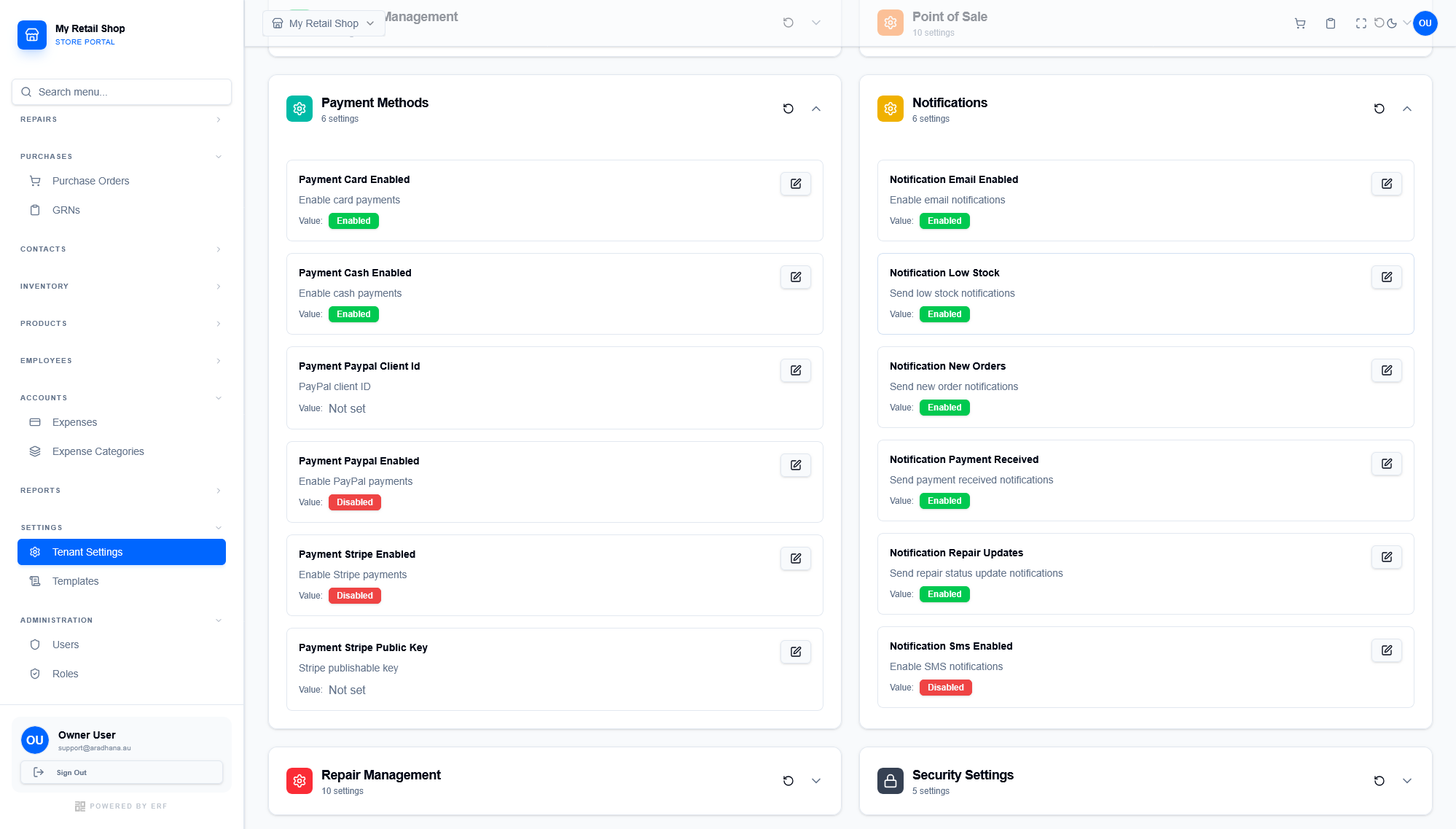
Figure 3 — Gateways for Payment Methods and Notification event toggles.
- Payment Methods: Enable or disable specific payment types (Cash, Card) and configure API keys for external gateways like Stripe and PayPal.
- Notifications: Globally toggle specific alerts, such as turning off Low Stock emails or enabling automatic Repair Status updates.
¶ 4. Repair Operations & System Security
Configure your service center defaults and enforce strict data protection policies.
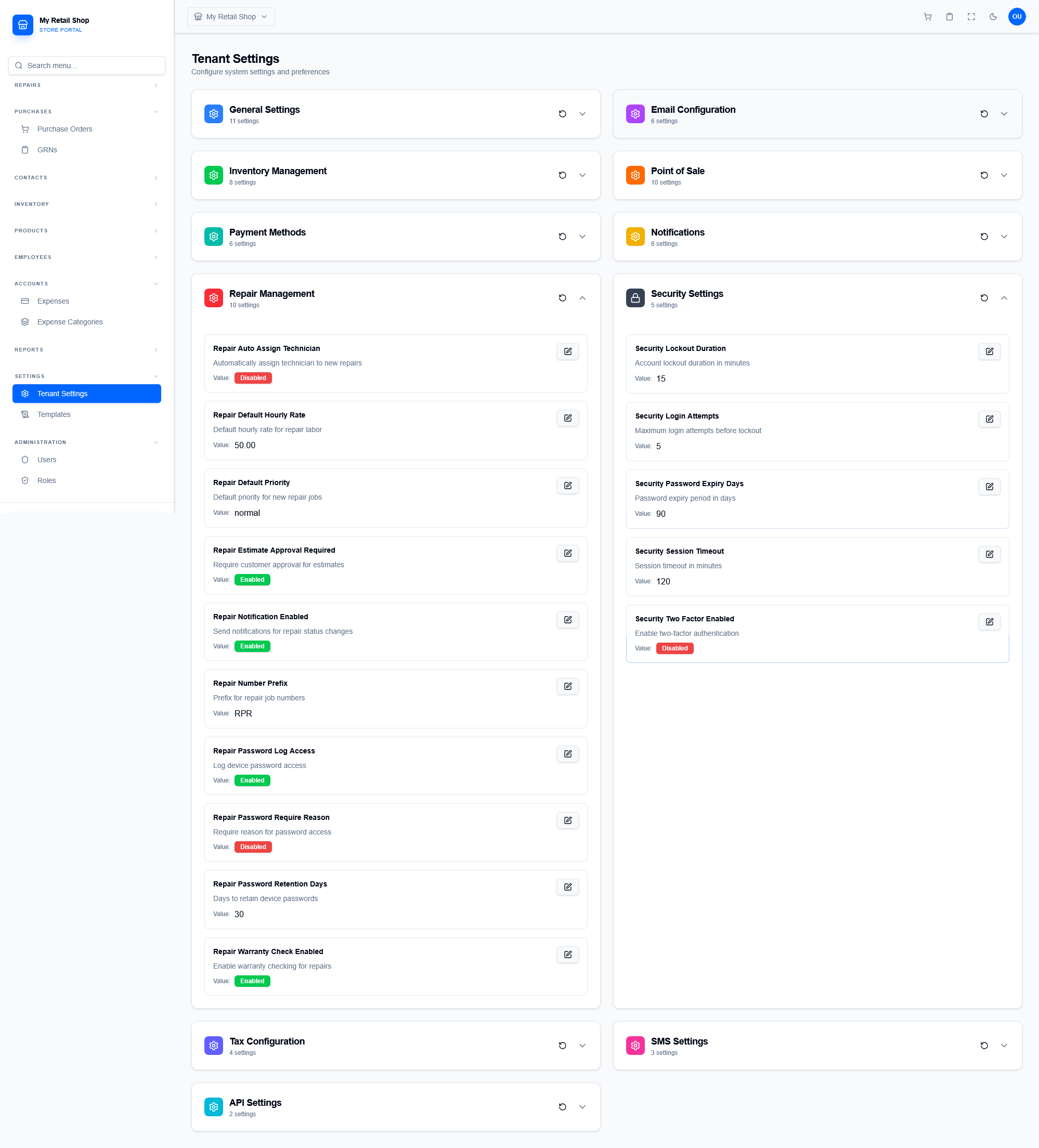
Figure 4 — Service center configurations and global security policies.
- Repair Management: Set default hourly labor rates, mandate customer approval for estimates, and configure how long device passwords are retained in the database (e.g., 30 days).
- Security Settings: Enforce strict password expiry policies (e.g., 90 days), manage session timeouts, set maximum login attempts before lockout, and toggle Two-Factor Authentication (2FA).
¶ 5. Financial Integrations (Tax & SMS)
Manage your local tax compliance and external SMS providers.
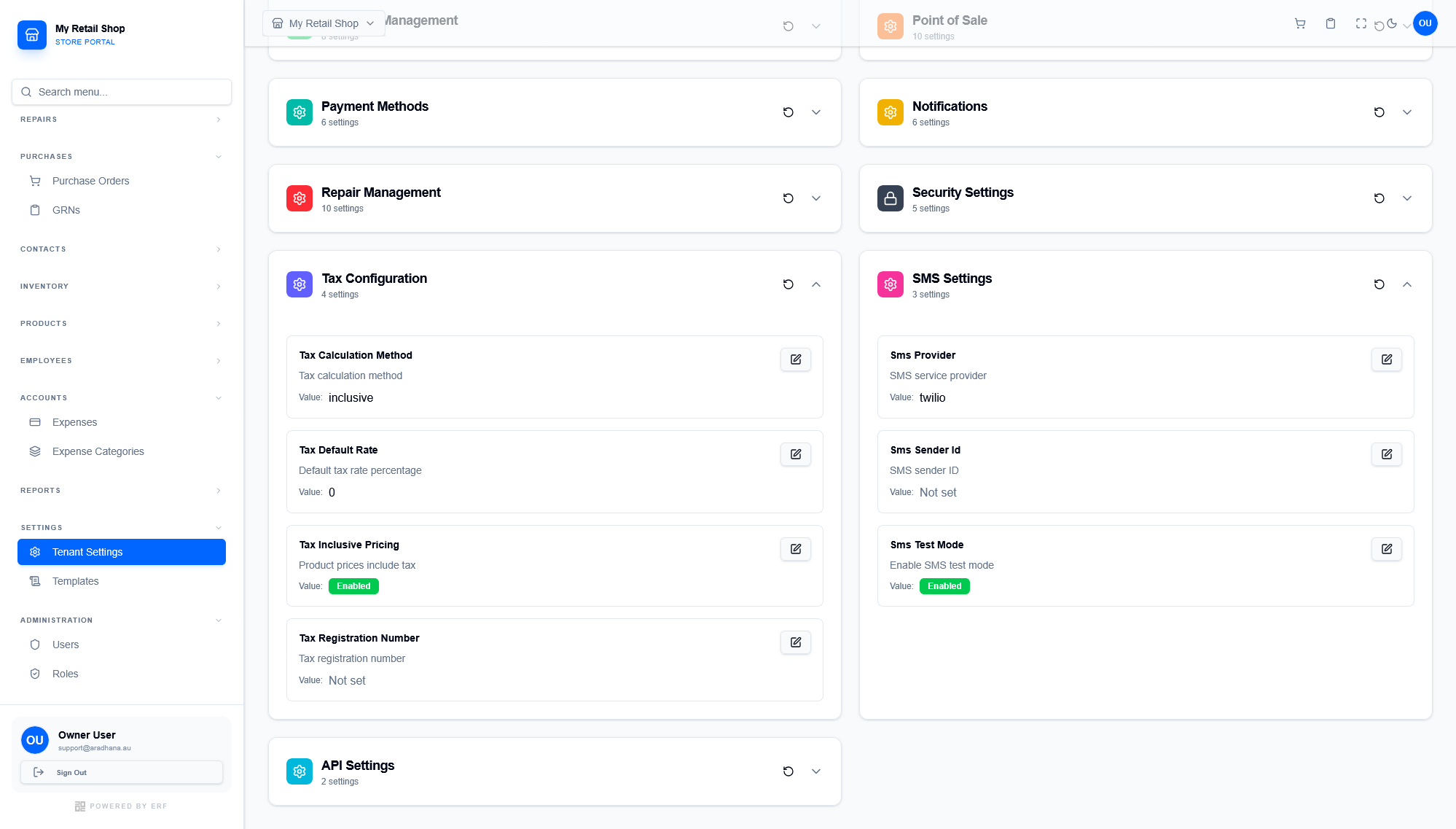
Figure 5 — Tax Configuration rules and SMS provider settings.
- Tax Configuration: Set the default tax calculation method (Inclusive vs. Exclusive), the default percentage rate, and input your business Tax Registration Number.
- SMS Settings: Link providers like Twilio to send automated text updates to customers.